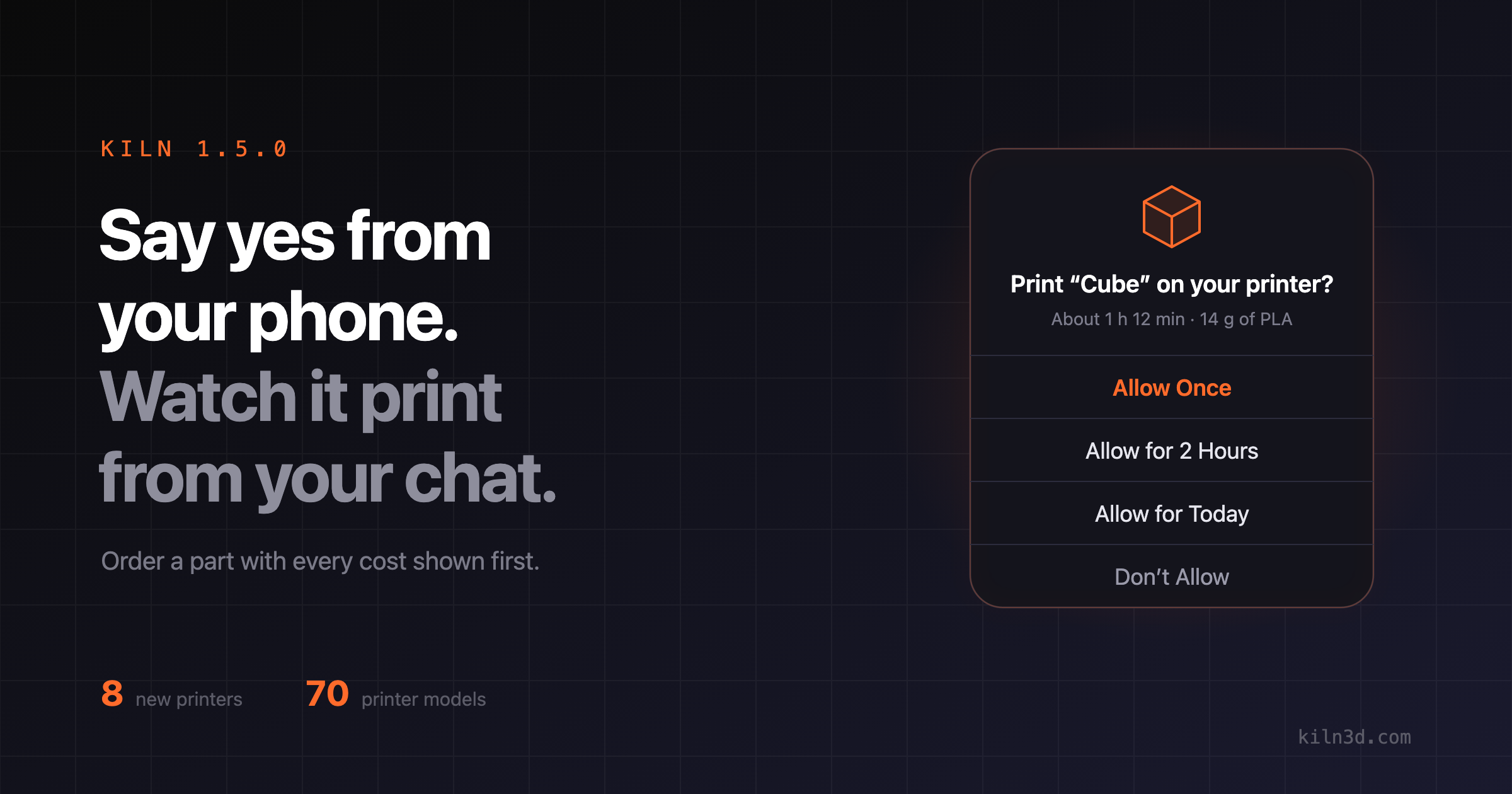
Kiln 1.5.0 is the biggest Kiln release yet. Kiln still never starts a print without a person’s yes, and now that yes can come from your phone, asked the way your phone asks for any permission. Once the print is going, watch it from inside your AI chat, camera included, and pause or stop it right there. No printer, or a part yours can’t make? Order it from a print service, with every cost laid out before you pay. Kiln also knows eight more printers, including Bambu Lab’s H2D, H2D Pro, H2C and X2D. Most of this is free. Kiln Pro adds the depth: the exact hole for an insert, the screw to buy, and load checks for where a part will actually live.
Say yes from your computer or your phone
Kiln never starts a print on its own. It shows you what will print and waits for a person to say go. Now you can say it wherever you are.
At your computer. In apps that show Kiln’s own approval question, you answer it right in the chat. If your app can’t ask, Kiln shows a four-digit code in a notification on the computer it runs on. Type it into the chat and that one print starts. Your AI never sees the code. Both are free.
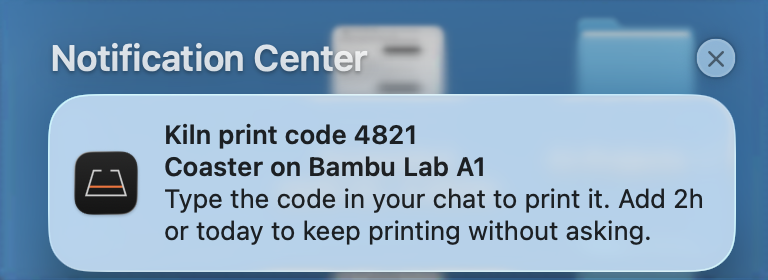
When your app can’t ask, the code shows up on your Mac.
On your phone. Walked away from your desk? When your app can’t ask and Kiln is signed in on the computer next to your printer, the print waits for you at kiln3d.com/monitor. Turn on alerts there and your phone asks the way it asks for any permission: Print “Cube” on your A1? Tap it to see the part, turn it over in 3D, and see how long it will take and how much filament it needs (when the file carries that). Then answer Allow Once, Allow for 2 Hours, Allow for Today or Don’t Allow. Nothing to install. On an iPhone, add Kiln to your Home Screen first.
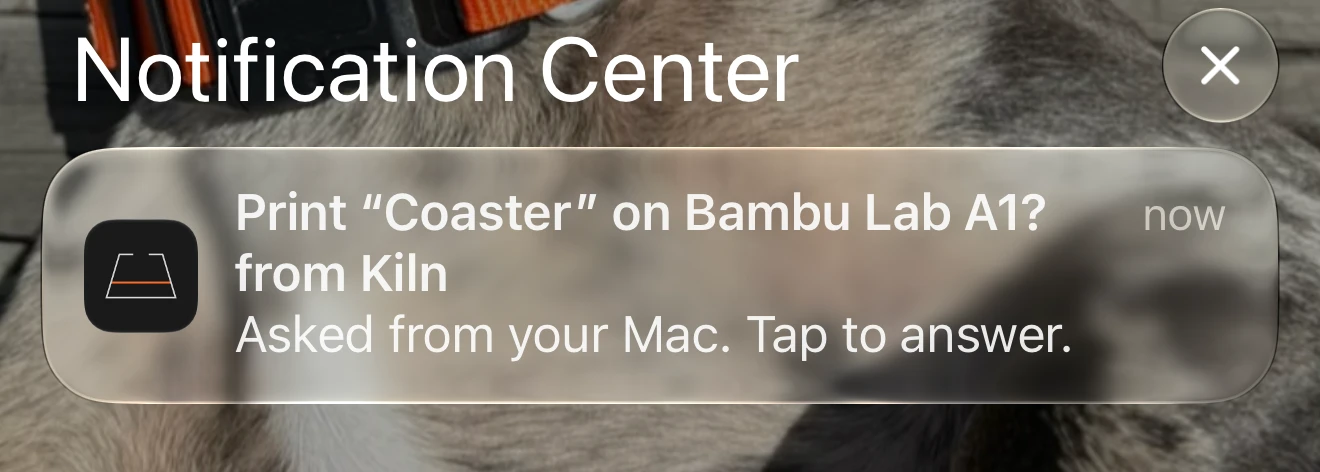
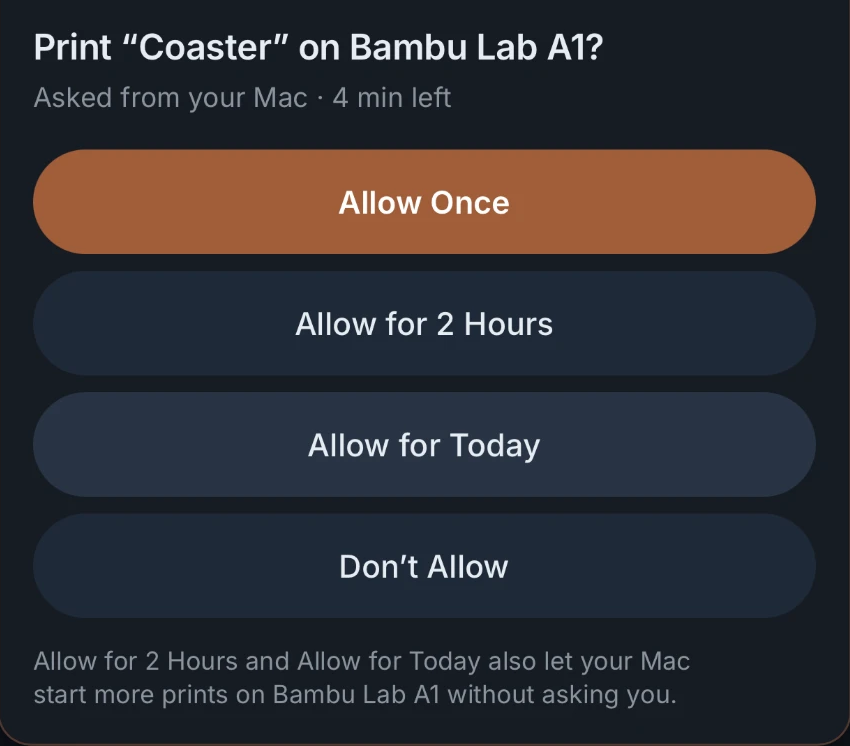
A real approval on a real phone: the alert, then the card it opens.
Saying yes from your phone is free when it’s on the same home internet connection as the computer running Kiln. From anywhere else, like over mobile data, it’s part of Kiln Pro. Pressing Print on kiln3d.com, or saying “print it” in Claude on the web, works the same way: the Kiln on the computer next to your printer slices it and prints it once you say yes, free from home and Kiln Pro from anywhere else.
Say yes for a while. In apps that show Kiln’s own approval question, you can answer “this print only”, “the next 2 hours”, “the rest of today”, or type how long, up to 24 hours. Prints on that printer start without asking until then, each result reminds you the window is open, and one message to your AI closes it. A yes that covers every printer at once is part of Kiln Business.
Only a person can say yes. Your AI can close a window, but it can’t open one, stretch one, or answer for you, and a yes is for the exact file and picture you were shown.
Watch your print from inside the chat
Ask your AI how the print is going and a live monitor opens right in the conversation: progress, the layer it’s on, when it will be done, nozzle and bed temperatures, and the printer’s camera. Pause, Resume and Stop are right there, and Stop asks before it stops anything.
On the computer connected to your printer, the camera plays live, from a Bambu A1 or P1 camera or a webcam. If the picture stops updating, Kiln stops calling it live, so a frozen frame never passes for a working print. Claude on the web gets the same panel through Kiln’s connector, with a fresh camera picture about every half minute.
The monitor is free with a free Kiln account, in AI apps that can show Kiln’s panels, like Claude and the Codex app; anywhere else, Kiln points you to the web monitor. That one got more honest too: a print paused for a filament runout keeps its camera, progress and Resume button on screen, and a print that has stopped moving says so.
Order a part from a print service, with every cost laid out first
No printer, or a part your printer can’t make? Ask Kiln for a quote from Craftcloud, the print service Kiln orders through. The quote lays out what the money is for: the printing, the shop’s own minimum charge when there is one, shipping, and Kiln’s fee, with a note that sales tax is added at checkout.
Happy with it? Kiln asks you to confirm the part and the shipping address, places the order, and hands you a link to the print service’s own checkout, where you pay them directly by card or PayPal. Nothing is made until you pay. Ask about the order any time and Kiln tells you whether it’s paid, being made, shipped or delivered, with the tracking number once it’s on its way.
We ran it end to end before release: a test order placed from a chat, paid on the print service’s checkout, made the same day and shipped two days later. Quoting is free on every plan. Kiln Pro’s first three orders each month carry no Kiln fee, and Kiln Business and Enterprise pay none. You order from your AI app, the same way you ask for anything else.
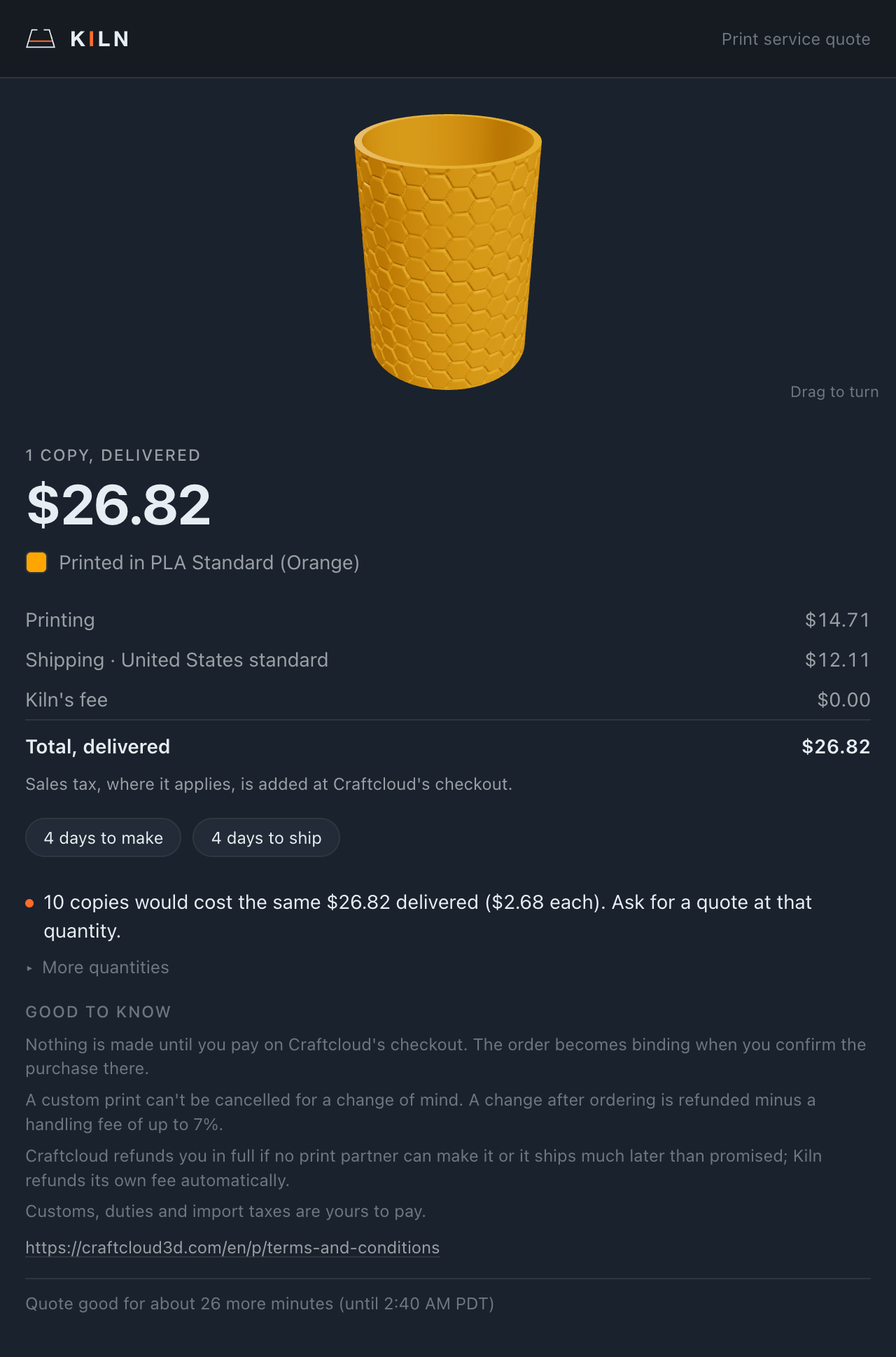
A real quote, made in chat: every cost laid out, and the part in the colour it would be printed in.
Eight more printers, and more of your setup
Kiln now has a profile for eight more printers, bringing it to 70 printer models across 15 brands: Bambu Lab’s H2D, H2D Pro, H2C and X2D, and QIDI’s Plus 5, Max 4, Q2C and X-Smart 3. Ask whether a material will work on yours and Kiln answers for that exact machine: yes, no, or which upgrade you’d need. While you’re signed in, each printer’s details stay current without updating Kiln. These machines are new to Kiln, so if you own one, tell us how it runs.
- QIDI air-filter warnings. Several QIDI printers switch their air filter off while the chamber heats, exactly when ABS and ASA need it. Kiln now tells you.
- More multi-material units. Beside Bambu’s AMS (its filament changer), a Klipper printer running Happy Hare or AFC and a Creality with a CFS now report what’s loaded in each slot.
- Connect an OctoPrint printer without copying a key. Kiln is compatible with OctoPrint, and it now asks OctoPrint for a key; you click Allow there. Older setups still take a pasted key.
- Load, unload and purge filament from Kiln on most printers it connects to. A purge doubles as a quick clog check, and a printer that gives Kiln no way to drive the extruder says so.
- Bambu fault codes come with the cause and the fix, including codes your printer’s screen never shows you. Tell Kiln a code in plain words and it looks it up, or says so when it has nothing on it.
- Kiln counts your filament cutter’s cuts and, where the maker publishes a replacement interval, tells you when the blade is due. Kiln Pro adds how long blades really last on machines like yours, measured across the Kiln community.
Parts that work
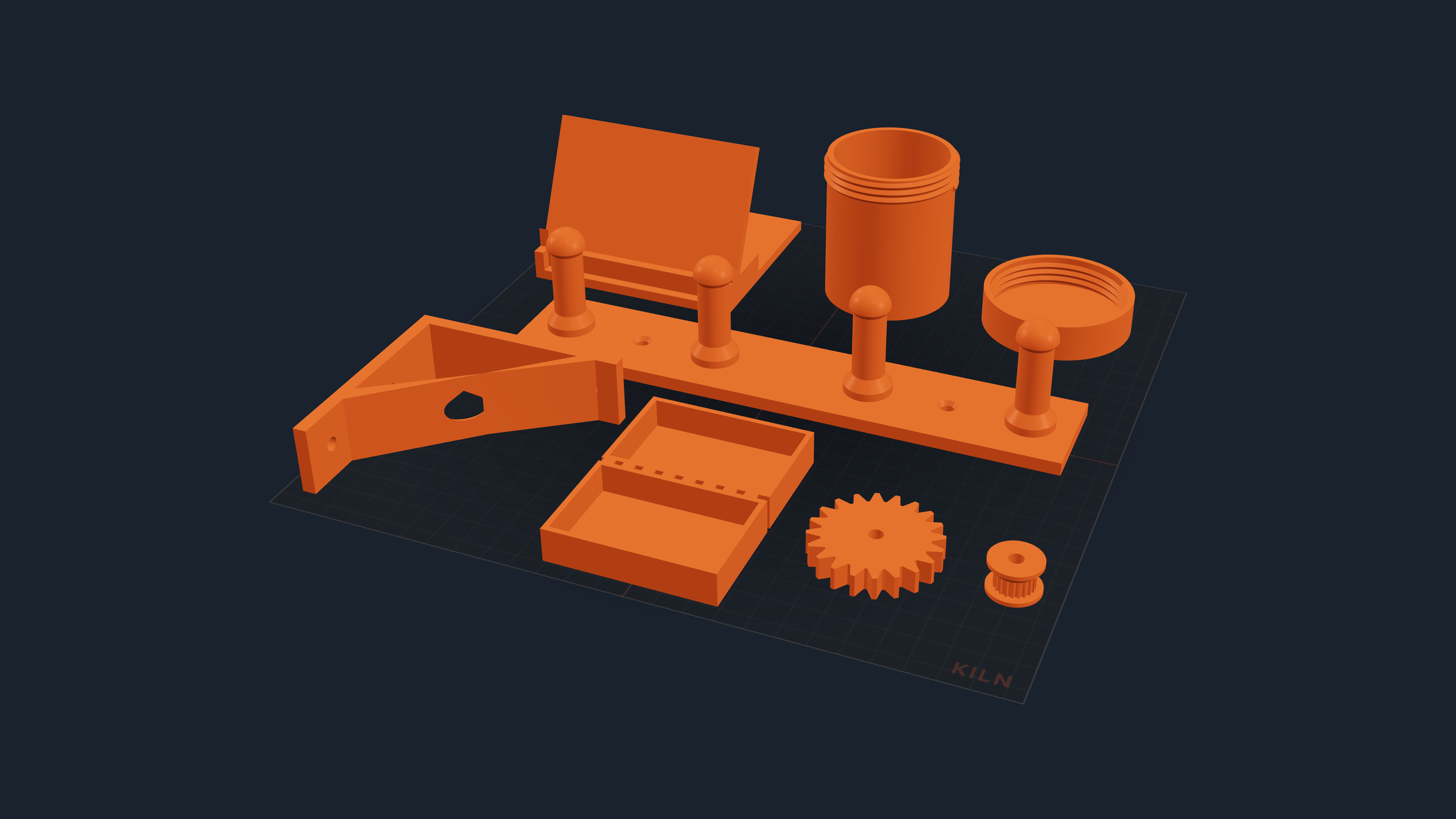
Seven of Kiln’s ready-made parts at their default sizes, on one 256 mm plate.
- Ask for a bracket, get a bracket. Kiln comes with ready-made parts you size to your own numbers, from shelf brackets and storage bins to stands, cases, hooks, jigs and clamps. Your AI can now find the right one from a plain description and build it, no AI key needed. We also checked every one for whether it does its job, not just whether it prints, and rebuilt the 23 that fell short, like a shelf bracket whose brace hid two of its screw holes.
- Describe a flat part by its rules. Tell your AI: a 60 by 30 mm plate, 4 mm thick, with two 3.4 mm holes, each 6 mm in from its end. Kiln works out where everything goes, and tells you what you’ve left loose, which rules can’t all be true at once, and when a hole would cut through the edge.
- Will it stand, hang, or mount on a wall? Kiln works out how a part is meant to live, asks if it can’t tell, and checks it: how far it can tip before it falls, whether it hangs straight, and what load its screws carry. Every part you make in a design session gets this check on its own.
- Check that a hinge opens before you print it. Kiln finds the hinge, swings the lid, and shows you how far it opens and what it hits first. It also catches a handle that only touches the body instead of joining it.
- A part with a piece floating in mid-air isn’t made. Kiln refuses it and says how far that piece is from the rest, so a broken design never reaches your printer. Separate parts sitting on the bed are still fine.
- Your photo stays the yardstick. Show Kiln a photo when you start, and every new version is compared with that photo, not with the last attempt.
- Download a CAD file from the web. Products you make in the web workshop now download as STEP (the editable CAD format machine shops use) next to the print files. When a design can’t be real CAD, like a photo relief, Kiln says why in one sentence.
Parts that hold (Kiln Pro)
Kiln Pro gets precise about the hardware that goes into a print and the loads a part has to carry.
- The right hole for a heat-set insert. A heat-set insert is a small threaded brass sleeve you melt into a print, so a screw bites into metal instead of plastic. Kiln Pro gives the same answer however you ask, and you can name it the way you’d say it, like “M3 screw” or “M3 heat-set insert”.
- The screw to buy. Screw joints name the standard screw to get, length and hex key included, for a part Kiln splits or for your own design.
- Seams that only get hardware where it fits. When Kiln splits a part too big for your bed, Kiln Pro only puts magnets, inserts or screws in a seam that has room for them, and says why when one can’t take them.
- Load checks for where the part lives. Tell Kiln Pro where a part will live, from a warm room to a parked car, and it says how much weaker the part is there and whether it will sag over time. For an arm sticking out from a wall, it says what gives out first, and when an arm can’t hold its own weight.
- Which versions held up. Tell Kiln how a printed part did under load, free on every plan, and Kiln Pro marks that version held, sagged or broke, so you know which one to print again.
On every plan, Kiln still gives you the safety warnings for inserts and magnets, and a Kiln Pro answer keeps every warning the free one gives. Upgrade to Pro tier or higher for the sizes, the screw to buy and the load checks. See pricing.
Textures that wrap, and colour that lands
Textures wrap round objects cleanly now. Wrap a pattern around a cup and it used to come out as stepped, smeared columns that spilled onto the inside. Now the cells are crisp, the inside and the lip stay plain, and a large model no longer times out. You can texture just one surface, like a lid, and a model you already painted keeps its colours. Different textures on different surfaces of one object is part of Kiln Pro.
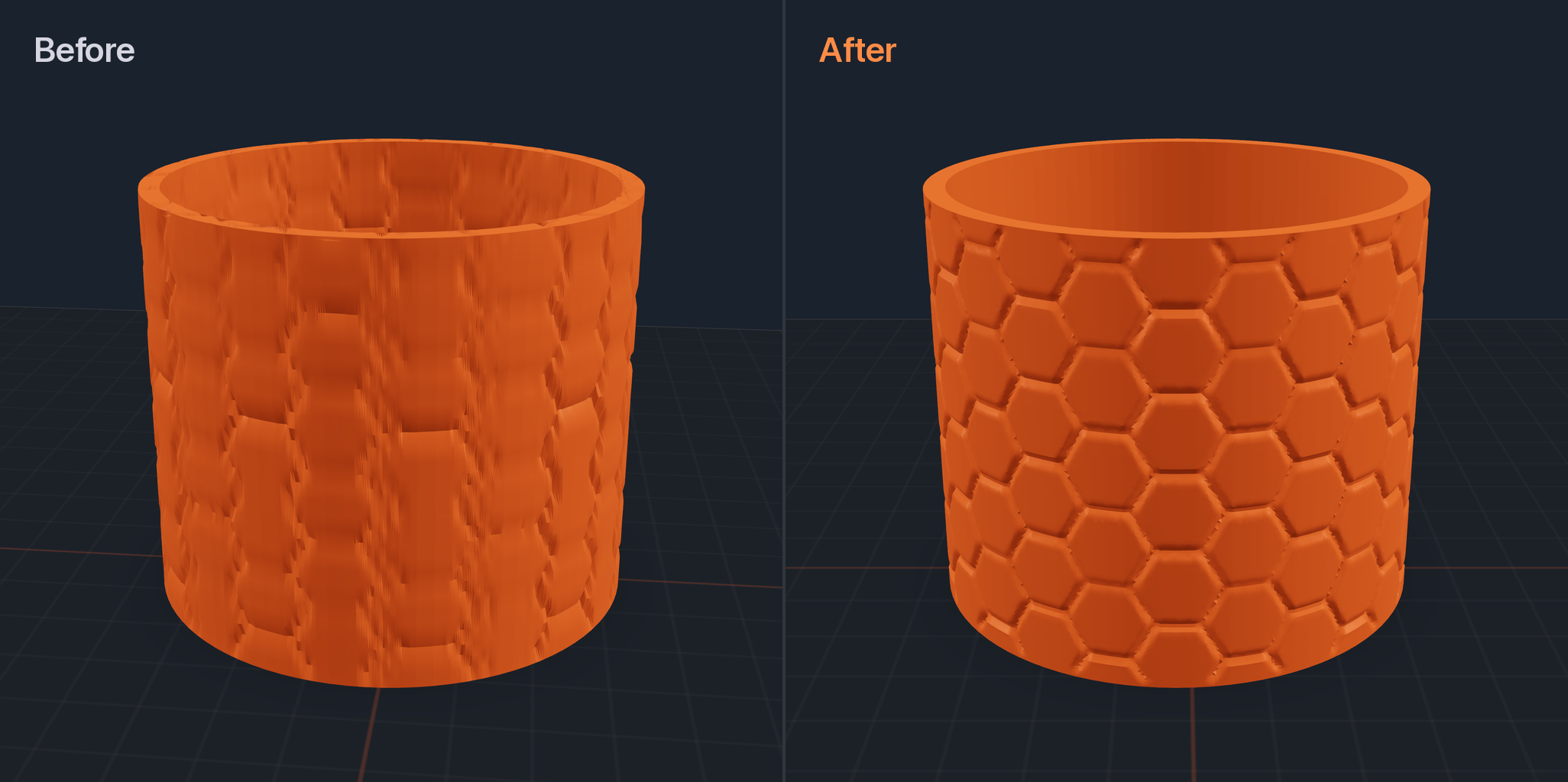
The same cup and the same honeycomb texture, before and after 1.5.0. Renders of the real carved files.
- Paint a model by saying which part. Tell your AI to make the inside red and the handle blue, and Kiln paints those surfaces. If a word could mean two places, it asks which one you meant.
- A carved logo paints as a logo, not a filled-in blob: the middle of a closed letter stays the body colour, and a name and a title carved into one part can each have their own colour, ready for a multi-filament printer.
- Your colours go to the spools that hold them. Ask for a colour and Kiln says whether it’s loaded, and stops rather than print a colour you don’t have. Kiln Pro shows the design remapped to the spools in your machine.
- Have a colour in mind? kiln3d.com/filament-colors finds the real filaments closest to it.
Git for 3D: see what changed (Kiln Pro)
Kiln Pro keeps every version of a design, the way programmers keep versions of code. Now each version in your history says how much it changed, and in the web workshop you can drag a line across your part to slide between two versions in one 3D view. You can also open a pull request on a design (a proposed change others review), review it and merge it, on the web or from your AI. Requiring approvals before a merge is part of Kiln Business. On the free plan, the design your plan includes pulls back down on any machine you’re signed in on. More at Git for 3D.
Ask Kiln about your printer
- Does it watch for fire? Which models detect flames or can drive an extinguisher, and what the printer does about it.
- Which failures does it catch on its own? Whether your exact model watches for spaghetti, clumping or printing into thin air and, where Bambu documents it, which print modes quietly switch that off.
- A cold pull, walked through (pulling cooled filament out to clear a clogged nozzle). The temperatures for your printer, when to stop pulling and what a clean pull looks like, plus what maintenance is really due. The steps that keep you safe are free; Kiln Pro adds the full procedures and the intervals.
- Ask your AMS questions. Why filament won’t unload after a power cut, how hot a unit can safely dry, and what a critical error code means, including the one that says switch the power off. The safety answers are free; Kiln Pro adds the full reference.
Careful with your printer
- A plate your printer can’t take never starts. Too big for that printer’s bed, or more colours than its AMS has slots, and Kiln says so before anything prints. Ask for more copies than fit and Kiln tells you, instead of printing fewer.
- Kiln won’t slice onto a part left on the plate. When Kiln knows your last print is still sitting there, it names it and how tall it is, and won’t put a new part on top. Signed in, it also tells you how many spots beside it would fit. A quick look through the printer’s camera settles what’s there.
- A long print is never mistaken for a stuck one. Kiln’s print queue used to give up on a print after two hours and could send the same file again. Now it leaves a running print alone and says so when one stops moving. Thanks to qjkme on GitHub, who traced it and sent the first fix.
- An emergency stop on a Bambu says whether it landed. Kiln waits for the printer to report that it stopped, and tells you to stop it at the machine if it can’t see that. On every printer, a stop that fails is reported as not stopped, never as done.
- A reading Kiln can’t vouch for says “unknown”. When your printer stops reporting, the hotend and bed read unknown instead of the last numbers Kiln remembered, and a printer with a fault leads with the fault in plain words.
- Safety notes where they matter. A Klipper printer’s temperature limit is explained for what it is: where the printer cuts its heaters, not a safe temperature to print at. Before Kiln sends you to clear a hot nozzle, it tells you to glove up. And for anything you’ll eat or drink from, a food-safe filament is only half the answer: standard brass nozzles usually contain a little lead, so Kiln says to check what yours is made of. On any plan, Kiln never suggests a plastic that isn’t food safe for something that holds food.
Kiln Pro on your printer
With Kiln Pro, your AI can change print speed mid-print, set a speed schedule by layer, resume an interrupted print, and recover after a power cut, showing you what it will do and why before each step. It can also tell you plainly what each plan includes, so you know what an upgrade gets you before you run into a limit.
Want to try it first? Try Kiln Pro free for 7 days: sign up with your email, and cancel before the week is out to pay nothing.
For shops on Kiln Business: Kiln checks every plate in your fleet before it sends a job, skips any printer with no room or a plate nobody has checked, and sweeps blade and nozzle wear across every machine you run, worst first.
Smaller fixes that add up
- Kiln runs on Windows again. Versions 1.4.1 and 1.4.1.1 stopped before running any command there. Thanks to AsteisesDev on GitHub, who reported it with the cause already found.
- The Claude Code plugin now connects Kiln. Tried it before and saw no Kiln tools? Run the two update commands below.
- Kiln only saves files where it should. An AI agent misled by something it reads can no longer get Kiln to overwrite your settings or startup files. Thanks to KulFilip on GitHub for reporting it privately. Kiln also guards better against harmful 3MF files.
- Print files in your Kiln account are encrypted at rest, including ones you saved earlier.
- Your printer’s screen shows the part. Print files Kiln sends now carry the preview picture and filament weight your printer’s screen reads, and Bambu tiles come in the plate’s real colours.
- See what your slicer adds around your part. An Extras switch on the 3D stage draws the skirt, brim, supports, raft and prime tower, each with roughly how much filament it takes.
- Show any model or print file you already have on the 3D stage and turn it over before you approve the print, without remaking or re-slicing anything.
- Prints sliced with OrcaSlicer for Klipper printers now heat up and home before anything comes out of the nozzle.
- Elegoo cameras open at the address the printer gives, and Kiln says when a camera’s feed is a kind it can’t show.
- 3MF files work everywhere STL does, GLB models open on the 3D stage and slice, and the web workshop takes OBJ files.
- License plate frames fit EU plates, in both the long and the two-line size, and the US frame now bolts to the plate it was made for.
- The web app has a Support page: report a bug, share an idea, or ask a question.
Full release notes: CHANGELOG.md.
Upgrading
- Already use Kiln? If you installed with uv, run
uv tool upgrade kiln3d. If you installed with pip, runpip install --upgrade kiln3d. Using the Claude Code plugin? Runclaude plugin marketplace update kiln, thenclaude plugin update kiln@kiln, and restart. - New here? Run
uv tool install kiln3d(orpip install kiln3d), then follow the install guide to connect Kiln to your AI app: Claude Desktop, Claude Code, Codex, or any other compatible AI client. In Claude Code,claude plugin marketplace add codeofaxel/Kilnthenclaude plugin install kiln@kilndoes it in two commands. On Claude on the web, add Kiln’s connector. - On a paid plan? Upgrade too, so the hardware, load and printer tools line up with what your plan includes.